How to add your first monitor
Adding a website to WebsitePulse takes less than two minutes. You just need your website address and an optional friendly name.
Step 1: Sign in to your dashboard
Go to app.websitepulse.io and sign in. If you do not have an account yet, click "Start free trial" to create one.
Step 2: Click "Add monitor"
From your overview page, click the green "+ Add monitor" button in the top right corner.

Step 3: Fill in your website details
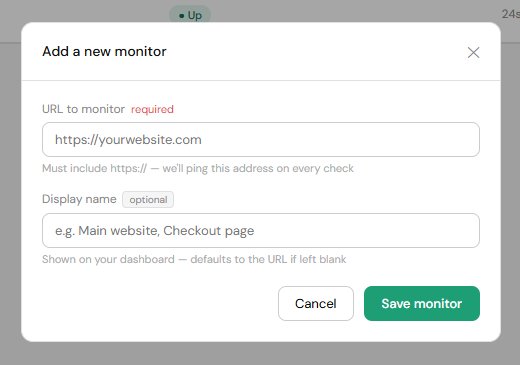
A form will appear asking for two things:
- URL to monitor — your full website address including https://. For example: https://yourwebsite.co.uk
- Display name — an optional friendly name shown on your dashboard, such as "Main website" or "Booking page". If you leave this blank, the URL will be used instead.
Step 4: Save and you are done
Click "Save monitor". WebsitePulse will start checking your site immediately. Within a minute or two you will see the status update on your dashboard.
You can add up to 3 monitors on the free plan, or up to 10 on Pro. If you need to monitor more pages on the same site, just add each one as its own monitor.
What happens next?
WebsitePulse checks your site every 5 minutes on the free plan, or every minute on Pro. If your site goes down, you will receive an alert by email. On Pro you can also set up WhatsApp alerts.